RAID stands for Redundant Array of Independent Disks. The idea is simple: spread your data across several drives in a way that lets one (or two) of them die without you losing anything. The NAS keeps running, you swap the dead drive, it rebuilds, life goes on. It is where our name comes from, and it is the single feature that separates a NAS from a USB drive on a shelf.
The levels you will actually meet
RAID 1 (mirror)
Two drives, identical copies. You get the capacity of one drive and can lose either. This is what a two-bay NAS does, and it is the right answer for a household or a small team: simple, fast to rebuild, no clever maths.
RAID 5
Three or more drives. Data is striped across them with parity information spread around, so any one drive can fail. Capacity is the total minus one drive: four 8TB drives give you 24TB usable. The classic four-bay configuration.
RAID 6
Like RAID 5 but with two drives of parity, so any two can fail at once. You give up a second drive of capacity. Worth it once drives get large, because rebuilding a 20TB drive takes a day or more and that is exactly when a second drive tends to go.
RAID 10
Mirrored pairs, striped together. Half the raw capacity, excellent random performance and fast rebuilds. Used for databases and virtual machines on rackmounts more than at home.
Synology Hybrid RAID (SHR and SHR-2)
Synology's own layer on top of RAID. It behaves like RAID 5 (SHR) or RAID 6 (SHR-2) but lets you mix drive sizes and still use the space, and lets you grow a volume one drive at a time. For almost everyone buying a DiskStation, SHR is the right default: choose it in the setup wizard and move on.
What RAID does not do
RAID protects against hardware failure. It does nothing against deleting the wrong folder, ransomware encrypting your shares, a flood, or a NAS being stolen. Those need a backup: a second copy somewhere else. Synology's Hyper Backup will copy to a second NAS, a USB drive, or Synology C2 in the cloud, and Snapshot Replication gives you point-in-time copies that ransomware cannot touch. Buy the drives for RAID; budget for the backup too.
How many bays do I need?
| Bays | Typical RAID | Usable (with 8TB drives) | Good for |
|---|---|---|---|
| 2 | SHR (mirror) | 8TB | Home, 1 to 5 users, backups and photos |
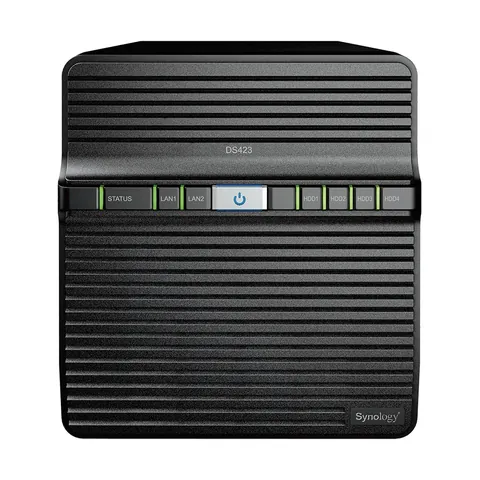
| 4 | SHR (one drive protection) | 24TB | Small office, media library, surveillance |
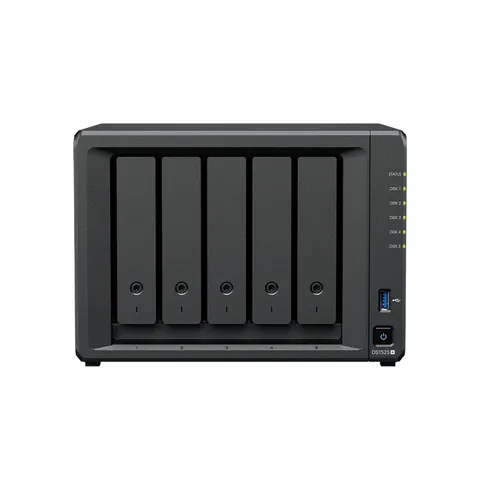
| 5 to 8 | SHR-2 | 24 to 48TB | Business file server, VMs, growing data |
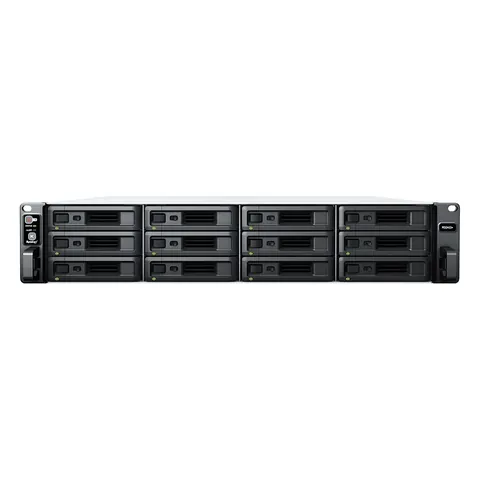
| 12+ | RAID 6 / RAID 10 | 80TB+ | Rackmount, backup target, video production |
A rule that serves people well: buy one more bay than you think you need, and fill it later. Adding a drive to an SHR volume is a click; replacing a whole NAS is a weekend.